Talk to us

How can we help?

Leave your email and we will get in touch.

Computer use

SAAM has a computer of its own.

To look up, fill in and sort out, SAAM opens its own browser and desktop. It is not your computer, so your screen stays yours. Watch it work, or take over at any moment.

Live

What it does

  • Browses sites, signs in, fills in forms and collects what it finds.
  • Runs a terminal and keeps files, so it can sort a list or write a document.
  • Shows you its screen live and hands it over when you ask.

How to start

  • Ask for a job that needs a website, such as a lookup or a form.
  • Open the computer pane from the monitor button in the chat header.

Limits

  • Up to 2 computers per space. A computer sleeps after 10 minutes idle.
  • Operating the screen needs a model that can see. The included one can.
  • Some sites block automated browsers, and SAAM cannot get past them.
  • Inside its own computer it does not ask before each click. Sending or changing things in your apps still asks.
What is in it

A real desktop, not a trick.

Each agent gets its own Linux desktop in a sealed container. Nothing on it is your laptop, your files or your browser.

  • A browser

    Chromium, with its own profile. Sites it signs in to stay signed in between jobs.

  • Files

    A home folder for downloads, spreadsheets and anything it writes. Saved when a job ends.

  • A terminal

    A real shell with Python, for sorting, converting and scripting the tedious parts.

  • A desktop

    Windows, a mouse and a keyboard. It can click and type like a person does.

Watch it, take over

Your screen stays yours. Its screen is open to you.

Open the computer pane to see what SAAM sees, live. Press Take control and the mouse and keyboard are yours until you hand them back. If SAAM gets stuck, it can ask you to step in. You get a notice that it needs you on the screen.
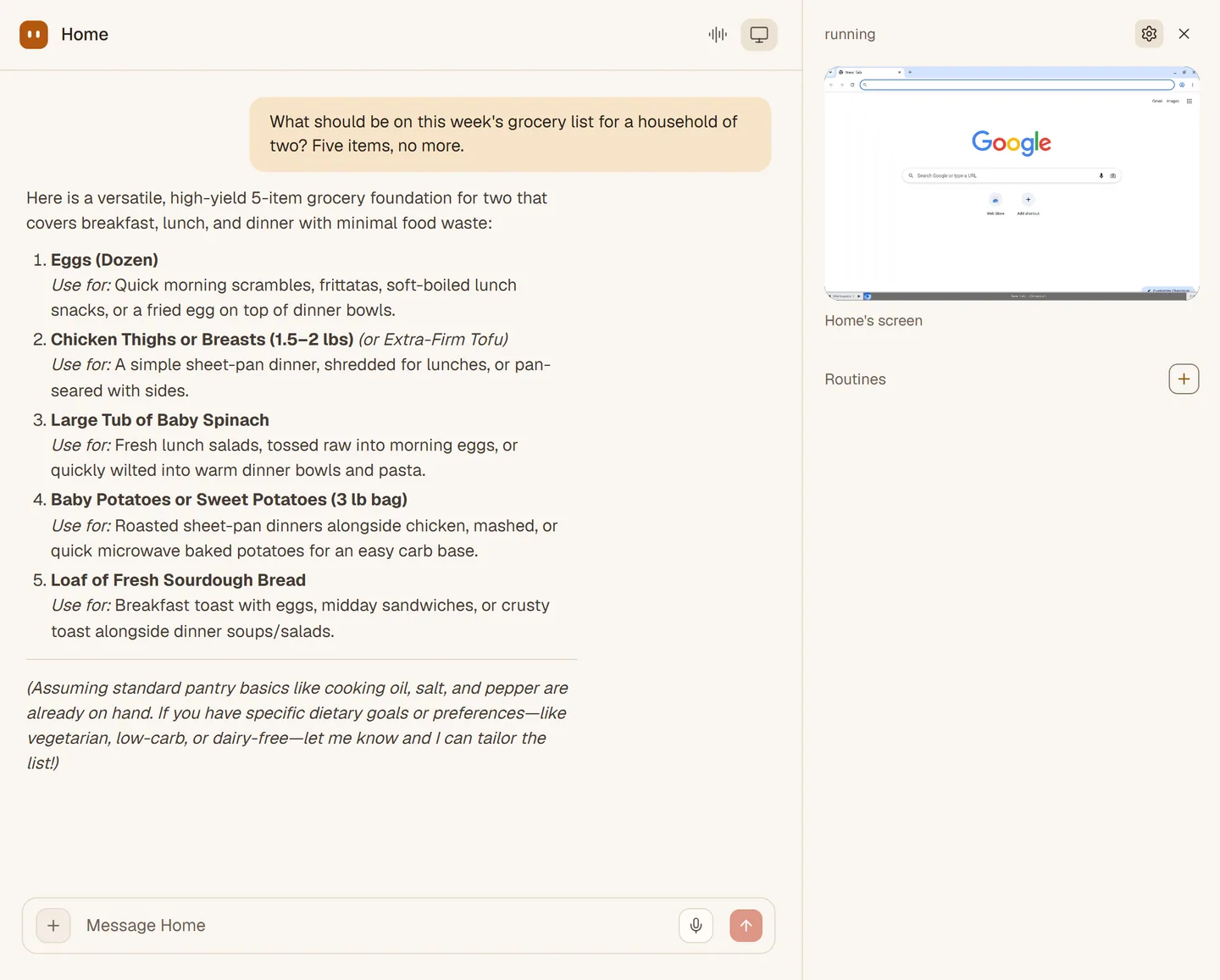
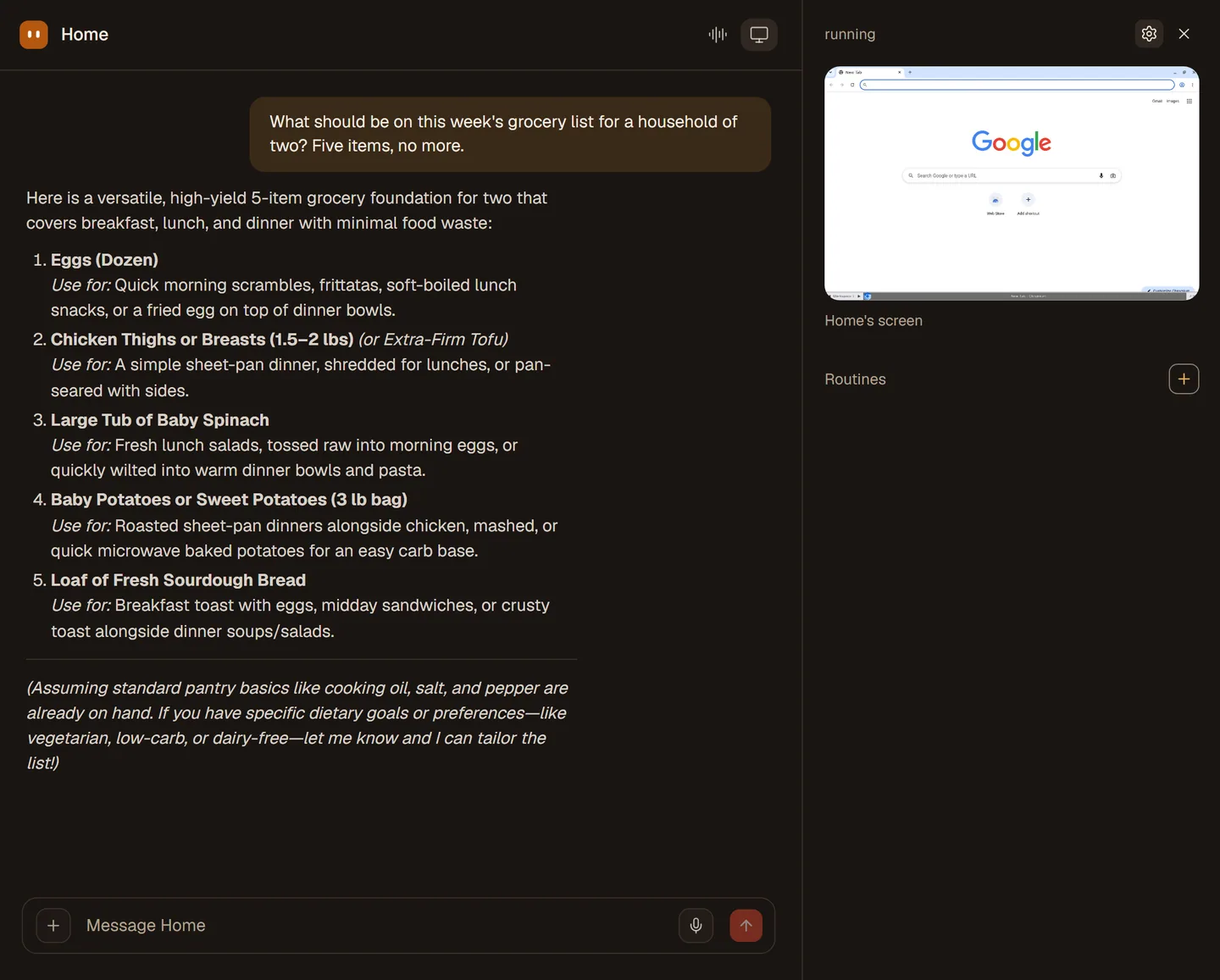
The Home agent in chat with its computer pane open on the right, showing the agent's browser and a Routines section below.The Home agent in chat with its computer pane open on the right, showing the agent's browser and a Routines section below.
A job, start to finish

Ask, watch or walk away, get the result.

Most jobs need nothing from you after the first message.

  1. 1

    You ask

    Find the pharmacy that is open late and add it to my list.

  2. 2

    The computer wakes

    It starts on demand with its saved browser profile and files.

  3. 3

    It works

    It reads pages, clicks, types and keeps notes. Open the pane if you want to see it.

  4. 4

    It reports back

    The answer lands in the chat, with files attached when there are any.

See it work

Watch the screen. Take control.

A short recording from the live app: the computer pane with you in control of the screen, then handing it back. The browsing in the clip was done by hand.

SAAM's computer pane: you have control of the screen, then release it. The browsing was done by hand for the recording. 25 seconds.
Passwords and codes

Secrets stay with you.

When a site needs a password or a code, SAAM asks for it on a card in the chat, not in the conversation. What you type there is passed to the site and is never shown to the model.

You can also take control and type it on the screen yourself.

How long it lasts

It sleeps when you are done.

A computer starts when it is needed and suspends after 10 minutes idle. Files and the signed-in browser are kept.

  • Kept

    Files in its home folder and the browser profile, so logins and cookies carry over.

  • Not kept

    Programs installed outside its home folder. Each wake starts from a clean system.

Honest limits

What it cannot do yet.

A computer takes real memory and processing, so SAAM keeps the numbers small and says so.

  • Two at a time

    Each space can run up to 2 computers at once.

  • Needs a model that sees

    Reading the screen takes a vision model. Page tools and the terminal work with any model.

  • Blocked sites

    Some sites refuse automated browsers or show checks SAAM cannot pass. We make no promise about those.

  • No click-by-click approval

    Inside the computer SAAM acts freely, and the sealed container is the boundary. Anything that sends or changes something in your apps still asks first.

Give it a job that needs a browser.

Open SAAM, ask for a lookup, and open the computer pane to watch it work.

Open SAAM